Step 2: Configure Your Ripping Preferences
In the Windows Media Player main window, go to the "Tools" menu and select the "Options..." menu item. If you don't see a menu bar along the top of Windows Media Player, you may need to enable it.
With the Options window showing, select the "Rip Music" tab in the Options dialog box. You should see the screen below.
If you see a "Copy Music" tab instead of a "Rip Music" tab, you need to upgrade to the latest version of Windows Media Player.
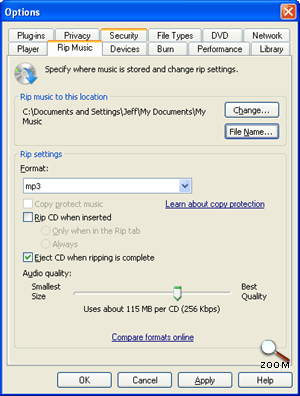 | | Windows Media Player Options Dialog Box. "Rip Music" Tab Showing. Make your configuration changes in this window. |
There are three settings you must review and/or change before your begin ripping your CD collection:
- Rip Music to This Location This is the folder where your MP3 files will be stored. The My Music folder under My Documents is the default (an excellent choice, really).If you prefer a different folder, click the "Change..." button. Otherwise, just remember your MP3s are in your My Music folder when you are ready to listen to them.
- Format (Under Rip Settings) By default, this will be set to Windows Media Audio. Since you are ripping your CDs to MP3 files, change this to MP3. If MP3 is not available in this list, you need to upgrade your Windows Media Player.
- Audio Quality (Under Rip Settings) Here is where you must decide how important sound quality is compared to hard drive space. Slide the slider to the right for better sound quality. Slide to left for the smaller files. For CD quality is widely considered 256Kbps. 192Kbps is called "FM radio" quality. Unless you're very desperate for hard drive space, stay away from the lowest setting (128Kbps).
|
|
Navigation
Ripping CDs using Windows Media Player
|
Originally Published: Thursday, September 15, 2005, 5:00 PM PT Last Updated: Wednesday, August 3, 2011, 6:15 PM PT Version 3
Topic Guide
| You are viewing the Knowzy topic: |
|
|
Instructional Guide 3 Items
Step 2: Configure Ripping Preferences (Viewing)
Multimedia and Tools 1 Item
|