Step 3: Insert an Audio CD and Rip
It is time to create some MP3 files! First, make sure you are connected to the Internet and have Windows Media Player running. Now insert your audio CD into a CD-ROM on your computer.
If an Auto-Play dialog box appears, hit cancel. If any new programs pop up, exit out of them.
Switch to the Rip CD Screen
Click the "Rip" tab (above) if it is visible. If you don't see the Rip tab, no worries, just open the menu, select "View", then "Go To" and finally select "Rip".
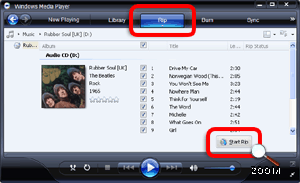 | | Windows Media Player Rip CD Screen Circled: "Rip" tab brings you to Rip CD screen. "Start Rip" button starts the conversion process. |
Verify Album Information
Make sure Windows Media Player correctly identified your CD. You should see the artist name, song titles and the album name. This information is obtained from the Internet, so make sure you're connected.
Click "Start Rip" and You Are Off
Start the conversion process from audio CD to MP3 by clicking the "Start Rip" button (labeled "Rip Music" in Windows Media Player 10). Your files will be ready in 5 to 20 minutes (depending on the speed of your computer).
If This Happens...
The first time you click the Rip Music button, you may get a message from Microsoft trying to convince you to use their Windows Media Audio format. Just select the "Keep current settings" option and click Continue to begin ripping to MP3.
Microsoft would love it if you used their own audio file format instead of the MP3 format to store your music. But what's best for Microsoft and what's best for the average user are not always the same.
|
|
Navigation
Ripping CDs using Windows Media Player
|
Originally Published: Friday, September 16, 2005, 5:00 PM PT Last Updated: Monday, June 27, 2011, 10:39 PM PT Version 1
Topic Guide
| You are viewing the Knowzy topic: |
|
|
Instructional Guide 3 Items
Step 3: Insert an Audio CD and Rip (Viewing)
Multimedia and Tools 1 Item
|